

Hardware Issues: When Your Specs Can’t Keep Up
Let’s start with the basics. Your computer has physical components — CPU, RAM, storage drive — and they all have limits. When you’re asking your machine to do more than it’s built for, you’re going to feel it.
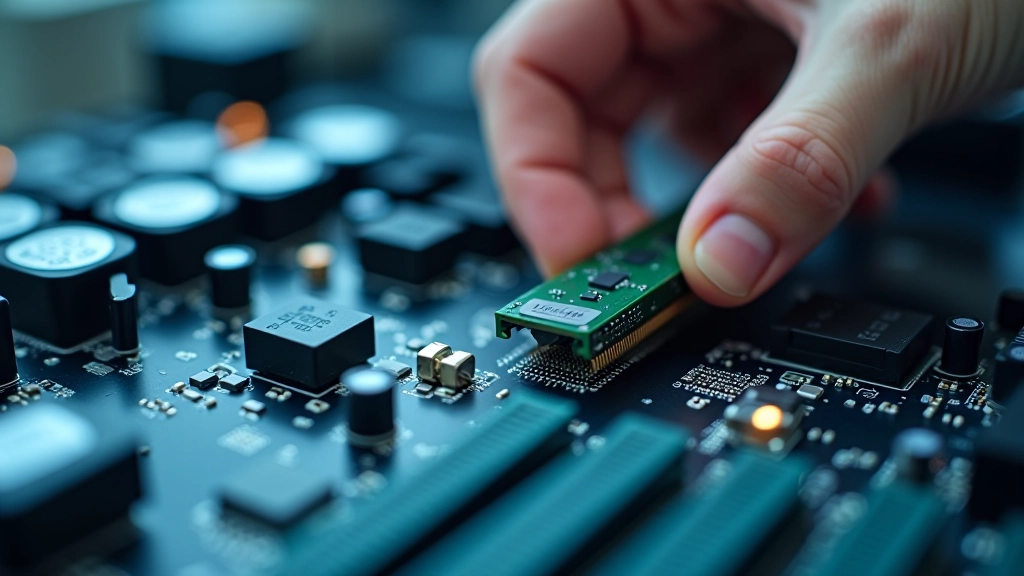
RAM is usually the culprit. If you’re running 10 browser tabs, Spotify, Discord, and editing a spreadsheet, and you’ve only got 4GB of RAM? That’s the problem right there. Your system will start using the hard drive as virtual memory, which is about 100 times slower. You’ll notice everything becomes sluggish — switching between windows, opening files, even typing feels delayed.
How to Check RAM Usage
Open Task Manager (right-click taskbar, select Task Manager). Click the Performance tab. You’ll see your RAM usage in real-time. If you’re consistently above 80-90% with apps running normally, you need more RAM. It’s one of the easiest upgrades you can make.
Storage Drive Performance: The SSD vs HDD Factor
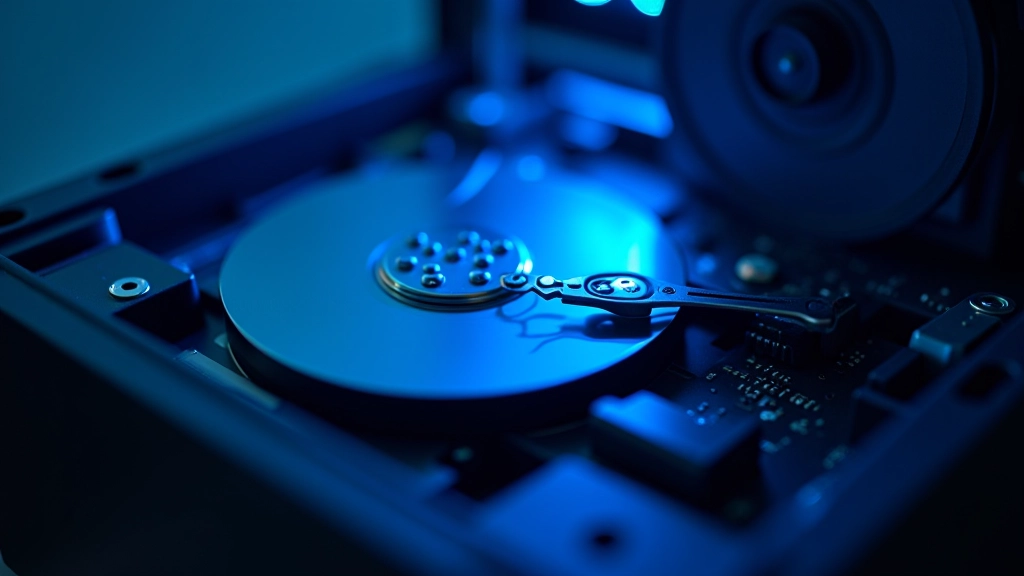
Your storage drive affects startup time and how quickly files load. This is where HDD vs SSD really matters. A traditional hard drive (HDD) spins at 5,400 or 7,200 RPM. An SSD has no moving parts and is 5-10 times faster.
If you’ve got an older HDD and your computer takes 2-3 minutes to boot, that’s normal for that hardware. If you upgrade to an SSD, you’ll see boot times drop to 15-30 seconds. It’s not magic — it’s just how the technology works.
But here’s what people miss: a full hard drive is also slow. If your drive is 90%+ full, Windows can’t create temporary files efficiently. Aim to keep at least 10-15% of your drive free.
Quick Hardware Diagnostic
Check these three things first: Open Task Manager Performance tab. Watch CPU, RAM, and Disk usage while you use your computer normally. If any consistently hit 90%+, that’s your bottleneck. Write down what you see — it’ll help if you need support.
Software Issues: When Programs Are the Problem
Now let’s talk about software. You can have decent hardware, but if your system is loaded with background processes, outdated drivers, or conflicting software, you’ll feel slowness everywhere.
Startup programs are a major issue. When Windows boots, it’s not just loading Windows — it’s also starting everything that’s set to run automatically. Antivirus, cloud sync tools, updaters, browser toolbars. Before you know it, 30+ things are running before you’ve even clicked anything.
Managing Startup Programs
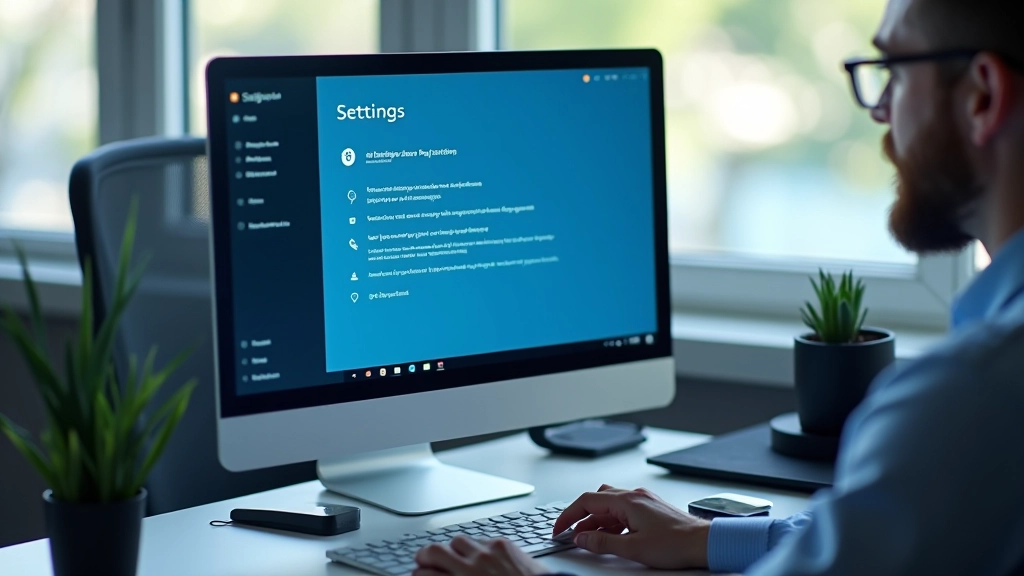
Press Windows+I to open Settings. Go to Apps Startup. You’ll see a list of programs that run when Windows starts. Disable anything you don’t use regularly — cloud sync, OneDrive, Dropbox, if you don’t need them at startup. This alone can cut boot time in half.
Malware and Security Threats: The Silent Performance Killer
This is the one that worries people, and rightfully so. Malware doesn’t always announce itself. It just runs in the background, using your CPU, network, and storage to do things you don’t know about. Mining cryptocurrency, sending spam, stealing data.
If your computer is slow and you can’t find any obvious reason in Task Manager, malware’s a real possibility. You might see unfamiliar processes, unusual network activity, or random system freezes.
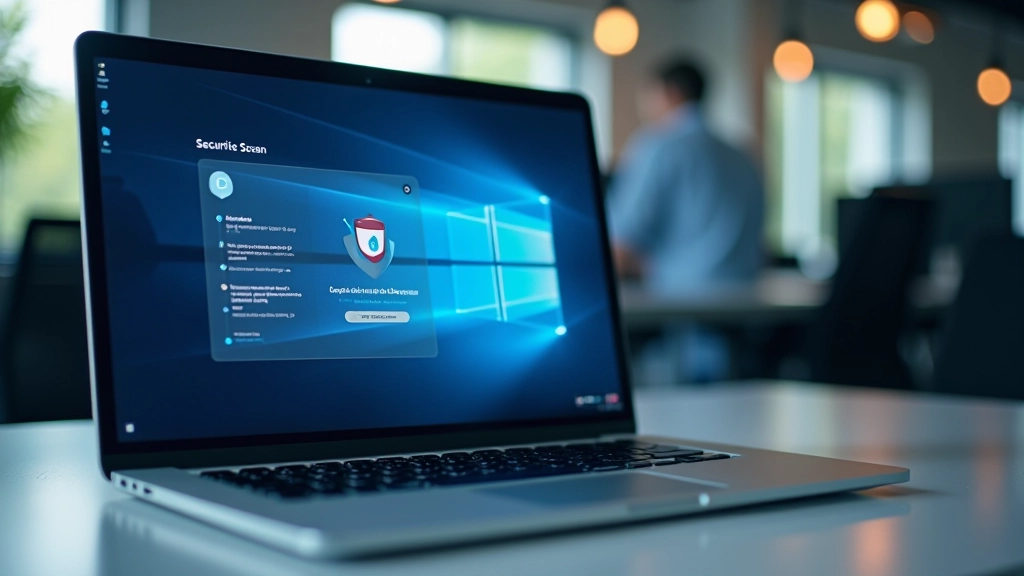
Run a full antivirus scan. Windows Defender (built-in) is actually pretty good these days. Go to Settings Privacy & Security Virus & threat protection. Click Scan options, select Full scan, and let it run. This takes 30 minutes to an hour, but it’s thorough. Don’t ignore this step if your machine’s acting strange.
Your Diagnostic Checklist
Check Task Manager
Right-click taskbar, open Task Manager. Watch Performance tab for 2-3 minutes while you work normally. Note CPU, RAM, and Disk usage.
Review Startup Programs
Settings Apps Startup. Disable programs you don’t need running automatically. This includes cloud sync, OneDrive, and browser extensions.
Run Antivirus Scan
Settings Privacy & Security Virus & threat protection. Run a full scan. This takes time but catches malware that might be running silently.
Check Disk Space
File Explorer This PC. Look at C: drive. If it’s over 90% full, you need to delete files or move them to external storage. Aim for 10-15% free.
Update Windows & Drivers
Settings Update & Security Check for updates. Windows updates include driver updates for graphics, network, and storage devices.
Consider a Restart
After making changes, restart your computer. This clears memory, stops background processes cleanly, and applies any updates.
Continue Learning
What You’ve Learned
Slow computer performance isn’t mysterious. It’s one of three things: your hardware can’t handle what you’re asking of it, your software is bloated with unnecessary background processes, or malware’s running silently in the background.
By running through the checklist above — checking Task Manager, cleaning up startup programs, running an antivirus scan, and making sure you’ve got disk space — you’ll identify which category your problem falls into. And once you know the cause, you can fix it.
Most slowness issues can be resolved with software changes. If you discover your RAM is maxed out or your drive is full, those are fixable too — either with upgrades or better file management. The important thing is you’re not just accepting a slow computer. You’re diagnosing it.
Disclaimer
This article provides educational information about computer performance diagnosis and troubleshooting. The steps described are general guidance based on common scenarios. Your specific situation may differ. Always back up important files before making system changes. If you’re uncomfortable performing these steps yourself, or if problems persist after attempting these solutions, contact a qualified technical support professional. The author and publisher are not responsible for any data loss or system damage resulting from following these instructions.